Contents
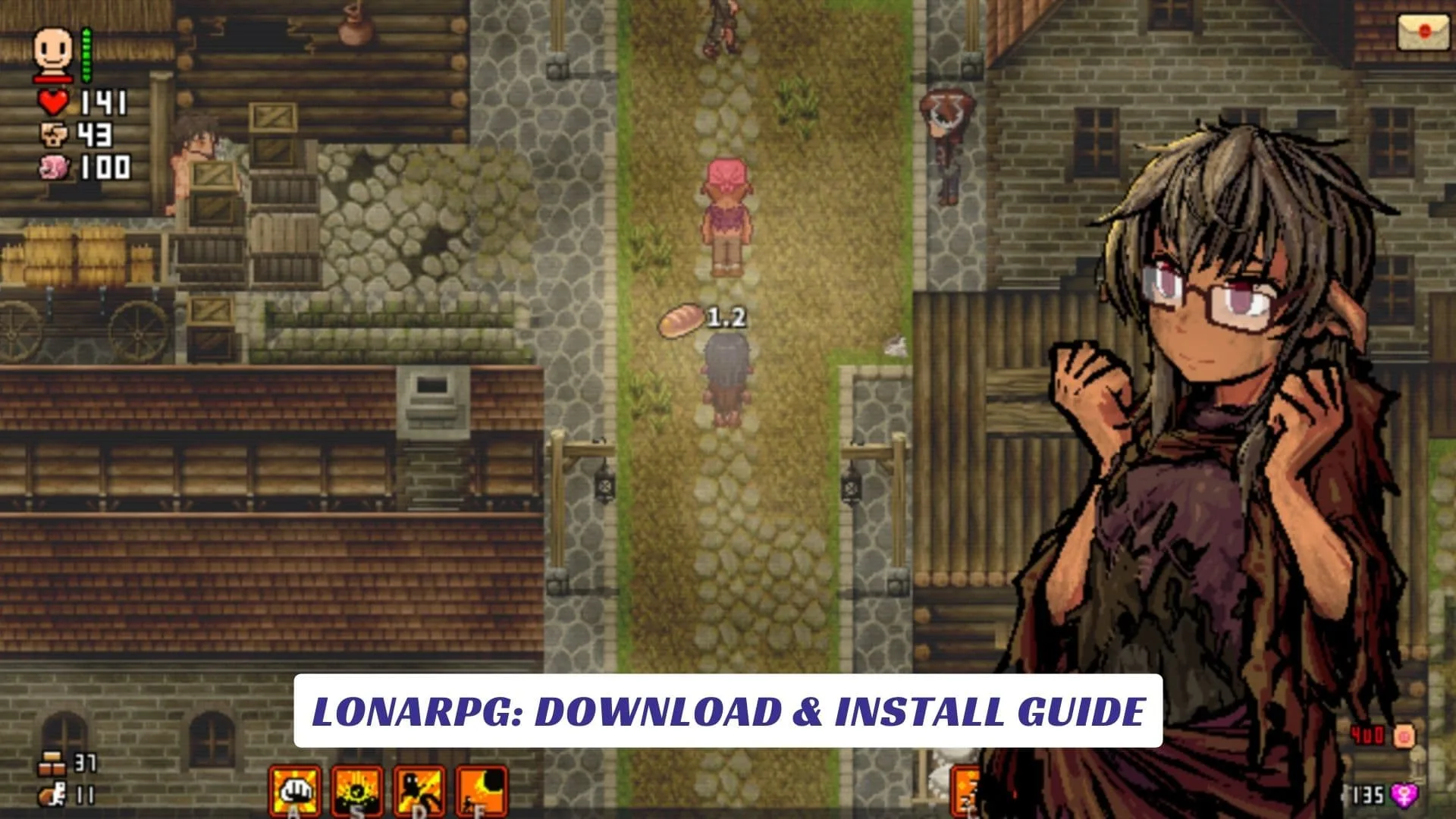
Entering the unforgiving yet captivating world of Lonarpg requires more than just courage; it starts with the right setup to ensure your journey begins without technical hitches. As an immersive role-playing experience that blends survival mechanics with deep narrative choices, knowing exactly how to access this indie gem is crucial for players eager to test their mettle against its many dangers. This comprehensive Lonarpg: Download & Install Guide is designed to walk you through every step of the process, from locating the correct game files to ensuring your system meets the necessary requirements for smooth gameplay. Whether you are a seasoned veteran of turn-based RPGs or a newcomer drawn in by the game’s distinctive art style and mature themes, understanding the installation nuances is key. We will cover the importance of downloading from official sources like the developer’s Patreon or authorized itch.io pages to avoid malware, discuss the specific file extraction methods needed for the Unity engine to run correctly, and highlight essential compatibility checks for Windows and Linux users. By the end of this introduction, you will be fully equipped to launch the game executable and begin crafting your own story in a world where every decision shapes your destiny.
System Requirements And Compatibility
Before attempting to download the game files, it is vital to ensure your hardware can handle the engine’s demands. While Lonarpg is built on a relatively lightweight framework, later updates have introduced more complex assets and scripting that can tax older machines.
- Operating System: Windows 10/11 (64-bit) is recommended for the most stable experience. Linux users can run the game using Wine or Proton, though native support may vary based on the specific build version.
- Processor: A multi-core processor (Intel Core i3 or AMD Ryzen 3 equivalent) is sufficient for handling the turn-based calculations and event triggers.
- Memory: At least 4GB of RAM is necessary to prevent crashes during scene transitions, though 8GB is preferred for smoother performance.
- Graphics: An integrated graphics card (Intel HD 4000 or better) can run the game, but a dedicated GPU with at least 2GB VRAM will ensure high-resolution character sprites render without lag.
- Storage: Ensure you have at least 2GB of free space. The game saves can grow in size over long playthroughs, so extra buffer space is recommended.
Locating The Official Game Files
The developer of Lonarpg frequently updates the game to fix bugs and add new content. To ensure you have the latest, most stable version, you must source the game correctly. Avoid third-party torrent sites, as these often contain outdated builds or compromised files.
The primary distribution channels are usually the creator’s Patreon page or itch.io. Patreon supporters often receive early access to beta builds (ver 0.x.x), offering a sneak peek at upcoming features before they go public. Public releases are typically free and available a few weeks after the patron release. always check the version number (e.g., Beta 0.8.0) to confirm you are downloading the most current iteration available to your tier.
Step-By-Step Installation Process
Because Lonarpg is often distributed as a standalone archive rather than through a launcher like Steam, the installation process is manual. Follow these steps to ensure the game runs correctly:
- Download the Archive: Click the download link for your operating system. The file will usually be in a
.zipor.rarformat. - Extract the Files: Do not run the game directly from inside the zipped folder. This is a common error that causes save files to fail or assets to load improperly. Right-click the downloaded archive and select “Extract All” or use a tool like 7-Zip to extract the folder to a dedicated location, such as
C:\Games\Lonarpg. - Locate the Executable: Open the extracted folder. You are looking for an application file simply named Lonarpg.exe (or similar, depending on the version naming convention).
- Create a Shortcut: Right-click the executable and select “Send to > Desktop (create shortcut)” for easy access in the future.
- Run as Administrator: For the first launch, it is often helpful to right-click the shortcut and select “Run as Administrator” to ensure the game has permission to create save folders in your documents directory.
Troubleshooting Common Launch Issues
Even with a clean installation, players sometimes encounter errors. The game relies on specific Unity libraries and visual redistributables. If the game fails to launch or crashes upon opening, consider the following fixes:
- Update DirectX and Visual C++: Ensure your Microsoft Visual C++ Redistributables are up to date. These are essential for running Unity-based games on Windows.
- Check Antivirus Settings: Sometimes, aggressive antivirus software may flag the Lonarpg executable as a false positive because it is from an “unknown publisher.” Add an exception for the game folder in your antivirus settings.
- Corrupted Downloads: If the game behaves erratically, your download may have been interrupted. Delete the folder, clear your browser cache, and re-download the archive.
- Save File Compatibility: If you are upgrading from an older version, copy your save files (usually found in the
www/savefolder or AppData) to a safe location before deleting the old version. Paste them into the new version’s save directory, though be warned that major updates sometimes break old saves.