Contents
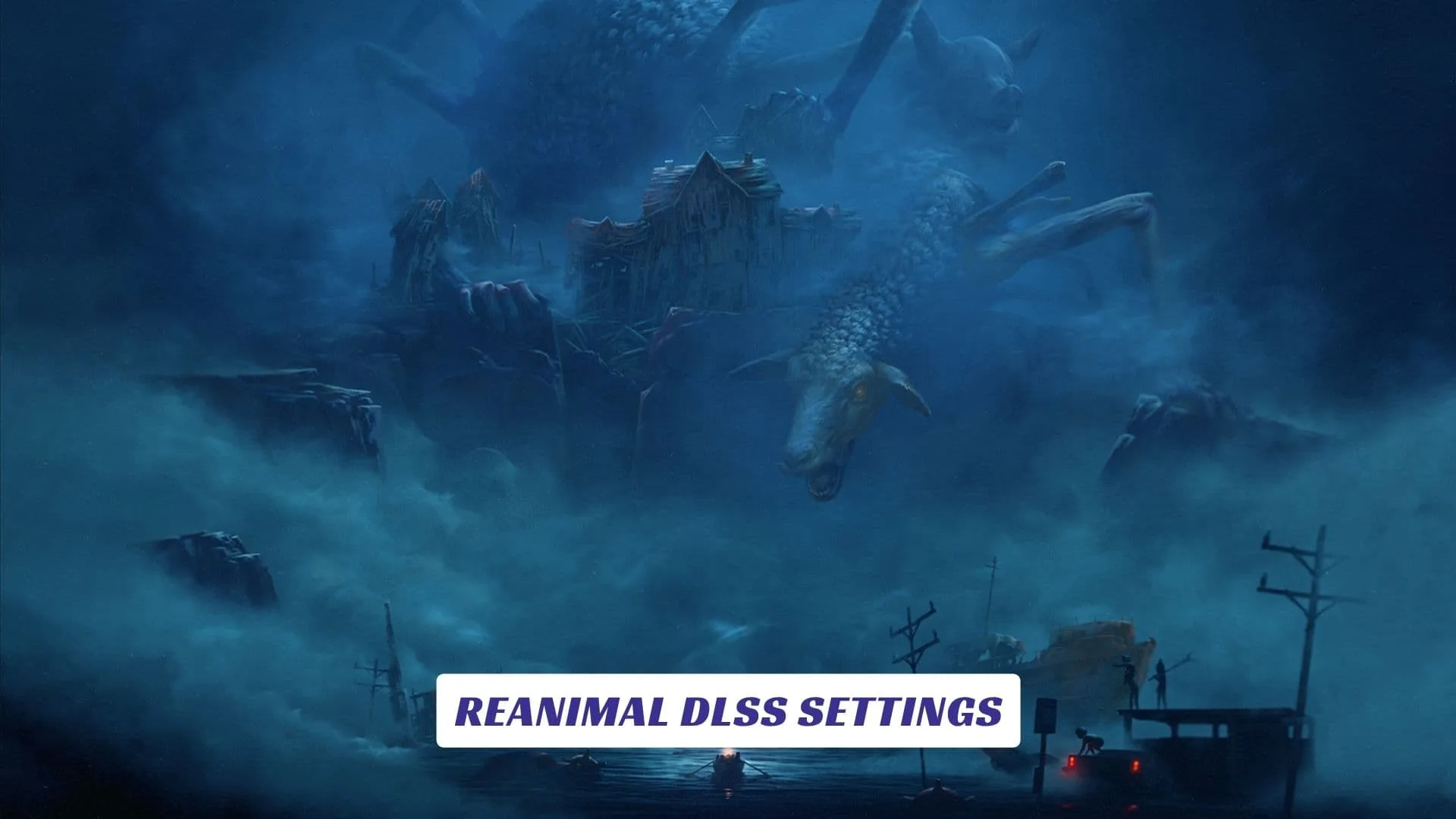
If you are diving into the chilling cooperative horror adventure created by Tarsier Studios, you are probably looking for the best ways to ensure your gameplay remains as smooth as it is visually terrifying. Navigating this dark, twisted world requires not just courage, but also a highly stable frame rate, especially since the environments can become incredibly demanding on your PC hardware. Whether you are exploring the eerie starting zones or fighting for your life in resource-heavy areas, having the right performance setup is an absolute necessity. By tweaking your Reanimal DLSS Settings, you can easily strike the perfect balance between high-fidelity visuals and fluid gameplay without experiencing immersion-breaking stutters. You are in the right place because reading Reanimal DLSS Settings: The Ultimate Optimization Guide will walk you through the various Nvidia upscaling options and graphical adjustments you need to survive. From understanding how modern upscaling interacts with newer graphics cards to managing specific engine quirks, mastering your configuration is the key to experiencing this atmospheric masterpiece exactly as the developers intended.
The visual design of Reanimal relies heavily on dense, atmospheric details that can quickly push your graphics card to its limits. While the early sections of the game might feel relatively forgiving, the engine becomes extremely demanding once you reach the highly detailed forest and town areas. Many players instinctively try to lower every single setting to gain frames, but certain modern rendering techniques should be left alone. For instance, turning off Nanite actually makes the game run worse, so keeping Nanite enabled is highly recommended for maintaining better overall performance.

How To Fix Upscaling And Preset Bugs
Some PC players have run into frustrating bugs where the game prevents them from properly choosing their desired scaling quality directly from the in-game menus. Fortunately, you can bypass this issue by utilizing external tools to force the correct Reanimal DLSS settings. By using software like DLSS Swapper or simply opening the official NVIDIA app, you can manually set your upscaling to “Preset K” or “Preset M”. Overwriting the default preset this way not only fixes the scaling bug but can also help you squeeze out significantly more frames during intense gameplay sequences.
Maximizing Your Frame Rates With Newer Hardware
If you are running a modern setup, the game offers excellent scaling capabilities that drastically improve your baseline performance. Benchmarks using newer cards like the RTX 5050 and 5060 Ti show that taking advantage of DLSS 4 and DLSS 4.5 delivers massive performance leaps when running in Balanced or Quality modes. For gamers equipped with capable hardware like the RTX 4070, playing at a high resolution with your upscaling set around 50% to 60% yields an image quality that is virtually indistinguishable from native rendering. Taking the time to properly configure these specific options can boost your performance by over 50% compared to simply relying on the default Ultra preset.