Contents
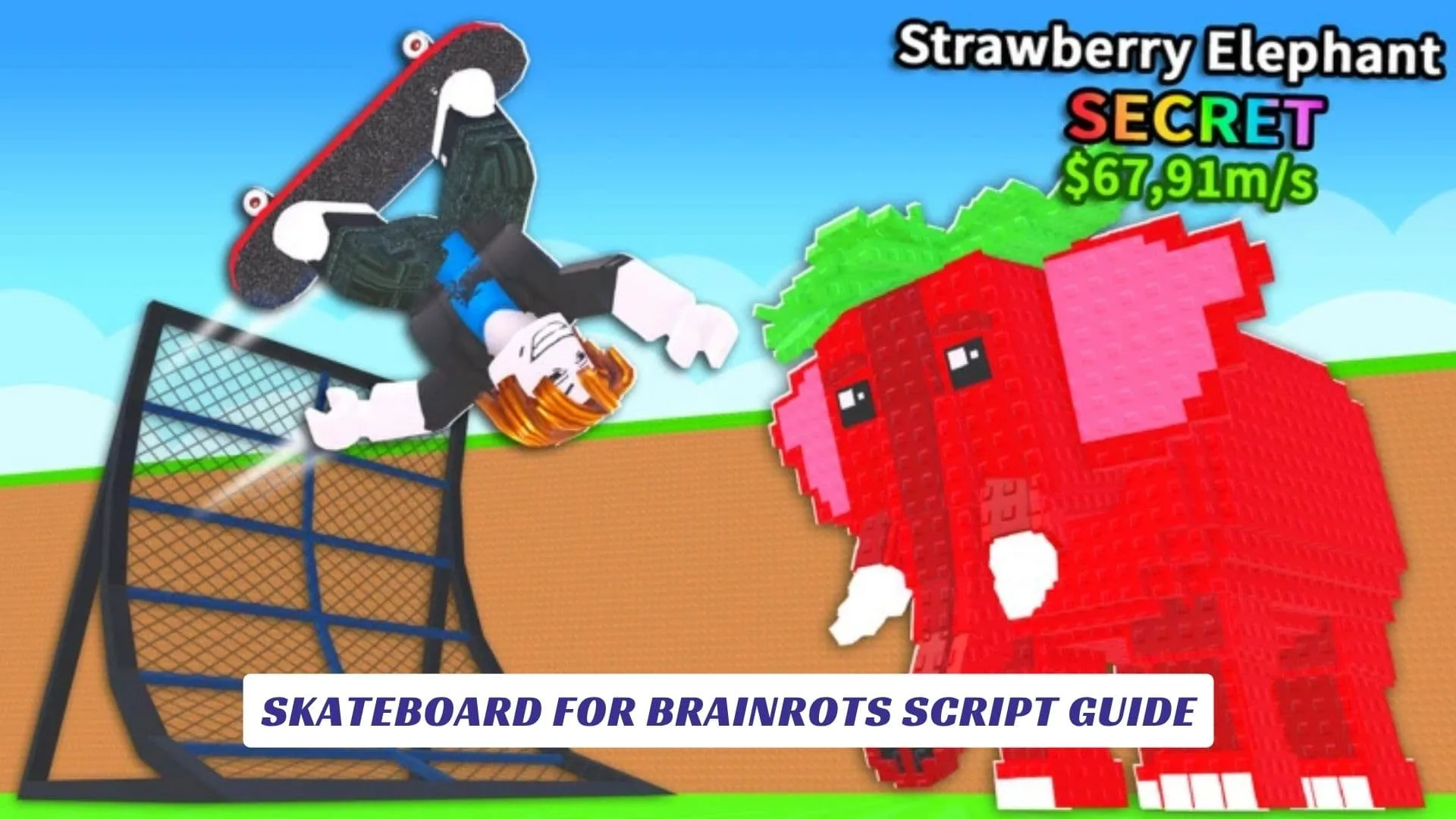
Welcome to the ultimate Skateboard for Brainrots Script Guide, your go-to resource for mastering one of the most entertaining and chaotic Roblox experiences available right now. Skateboard for Brainrots is a wildly popular Roblox game that combines the thrill of skateboarding with the absurd, meme-fueled world of “brainrot” culture, creating a uniquely addictive gameplay loop that has attracted millions of visits on the Roblox platform. Whether you are a seasoned Roblox scripter, a casual player looking for an edge, or someone who simply wants to understand how exploit scripts and cheats work for this particular title, this guide covers it all in extensive detail. In this article, we will walk you through working scripts, explain how they function inside Roblox Studio and script executors, and give you tips on how to make the most of your Skateboard for Brainrots sessions. If you are also looking for in-game reward boosts, our website includes an earlier post featuring the latest Skateboard For Brainrots Codes that can help you unlock free items and bonuses. From auto-farm scripts to speed hacks and GUI-based cheats, this Skateboard for Brainrots script guide is designed to be your comprehensive companion. Roblox scripting has become a massive community effort, with players constantly sharing, updating, and refining Lua-based scripts that interact with game mechanics in creative ways. The brainrot skateboarding genre on Roblox has exploded in popularity, and Skateboard for Brainrots sits right at the center of that trend, offering players the chance to perform tricks, collect items, compete on leaderboards, and experience hilarious brainrot-themed obstacles and characters. Let us dive in and explore every script, cheat, and trick you need to know.
About Skateboard For Brainrots
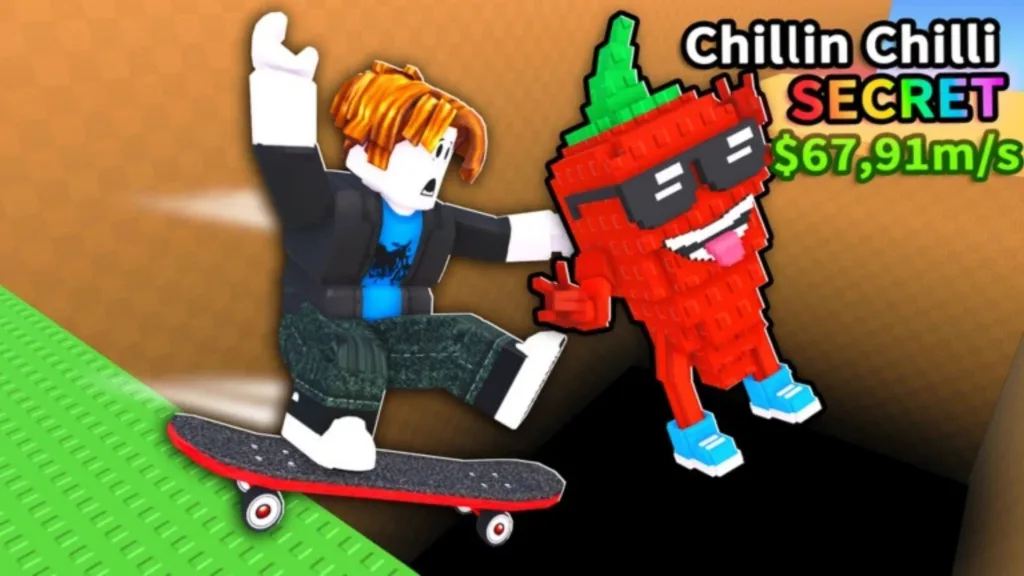
Skateboard for Brainrots is a Roblox experience developed and published on the Roblox platform that blends skateboarding mechanics with the internet’s beloved brainrot meme universe. In the game, players ride skateboards through various maps filled with quirky obstacles, ramps, and collectibles, all themed around popular brainrot characters and references. The game features multiple skateboard types that players can unlock, trick-based scoring systems, and competitive leaderboards that encourage replayability.
Key Game Features
- Multiple Skateboard Types: Unlock and equip different boards with unique stats for speed, trick multiplier, and style.
- Brainrot-Themed Maps: Explore levels packed with meme references, funny NPCs, and absurd environmental hazards.
- Trick System: Perform flips, grinds, and aerial combos to rack up points and climb the leaderboard.
- Collectibles and Currency: Gather in-game coins and items scattered throughout each map.
- Regular Updates: The developers frequently add new content, boards, maps, and seasonal events.
The game has amassed a significant player base, with thousands of concurrent players at peak times. Its lighthearted tone and accessible gameplay make it appealing to a broad audience, while the depth of its trick system and unlockable content keeps dedicated players coming back.
How Scripts And Cheats Work In Roblox Games
Before we get into the specific scripts for Skateboard for Brainrots, it is important to understand the basics of how Roblox scripting and cheats function. Roblox games are built using Roblox Studio, the official development environment that uses the Lua programming language. Every game on Roblox runs on a client-server architecture, where the server handles core game logic and the client manages what the player sees and interacts with locally.
Exploit scripts, often called “cheats” in the community, are Lua scripts that are injected into the Roblox client using third-party script executors. These scripts can manipulate client-side game behavior, such as player speed, jump height, auto-collection of items, and GUI overlays that provide extra functionality. It is worth noting that using exploit scripts can violate Roblox’s Terms of Service, and players risk account penalties. This guide is provided for educational purposes to help you understand how these scripts work, especially if you are learning Lua scripting or developing your own games in Roblox Studio and want to understand potential vulnerabilities.
Common Types Of Roblox Cheats
- Auto-Farm Scripts: Automatically collect coins, items, or perform actions to earn rewards without manual input.
- Speed Hacks: Increase your character’s walk or skateboard speed beyond normal limits.
- Teleport Scripts: Instantly move your character to specific locations on the map.
- GUI Scripts: Add a graphical user interface overlay with buttons to toggle various cheats on and off.
- ESP and Noclip: See through walls or pass through solid objects.
Working Scripts For Skateboard For Brainrots
Below are several scripts that have been shared within the Roblox scripting community for Skateboard for Brainrots. These scripts are written in Lua and are designed to be used with a script executor. We have organized them by function so you can find exactly what you need.
Auto-Farm Script
This script automatically collects coins and items on the map, saving you hours of manual grinding. It works by detecting collectible objects in the game’s workspace and teleporting your character to each one in sequence.
-- Skateboard for Brainrots Auto-Farm Script
local player = game.Players.LocalPlayer
local character = player.Character or player.CharacterAdded:Wait()
local humanoidRootPart = character:WaitForChild("HumanoidRootPart")

local function collectItems()
    for _, item in pairs(workspace:GetDescendants()) do
        if item:IsA("Part") and item.Name == "Collectible" then
            humanoidRootPart.CFrame = item.CFrame
            wait(0.3)
        end
    end
end

while true do
    collectItems()
    wait(1)
end
This auto-farm cheat loops continuously, scanning the workspace for parts named “Collectible” and moving your character to their position. The wait(0.3) delay between each teleport helps avoid detection and ensures the game registers the pickup properly.
Speed Boost Script
Want to zoom across the map faster than any other player? This speed boost script modifies your character’s WalkSpeed property to give you a significant advantage, especially useful when racing or trying to reach collectibles before others.
-- Skateboard for Brainrots Speed Boost Script
local player = game.Players.LocalPlayer
local character = player.Character or player.CharacterAdded:Wait()
local humanoid = character:WaitForChild("Humanoid")

-- Set custom speed (default is 16, adjust as needed)
humanoid.WalkSpeed = 100

-- Optional: Also boost jump height
humanoid.JumpPower = 100

print("Speed Boost Activated!")
You can adjust the WalkSpeed and JumpPower values to your preference. Setting them too high may cause glitchy behavior or trigger server-side anti-cheat systems, so experiment carefully.
Teleport To Any Location Script
This script provides a simple teleport function that moves your character to specific coordinates on the map. You can modify the Vector3 values to target different areas, such as secret zones, the spawn point, or high-value collectible locations.
-- Skateboard for Brainrots Teleport Script
local player = game.Players.LocalPlayer
local character = player.Character or player.CharacterAdded:Wait()
local humanoidRootPart = character:WaitForChild("HumanoidRootPart")

-- Teleport to specific coordinates (modify x, y, z as needed)
local targetPosition = Vector3.new(150, 50, 300)
humanoidRootPart.CFrame = CFrame.new(targetPosition)

print("Teleported to target location!")
To find the exact coordinates of locations you want to teleport to, you can use Roblox Studio’s Explorer and Properties panels to inspect map objects and note their Position values.
Full GUI Script With Multiple Features
This is a more advanced script that creates a toggleable GUI overlay with multiple cheat options built in. It includes auto-farm, speed boost, infinite jump, and noclip, all accessible through on-screen buttons.
-- Skateboard for Brainrots Full GUI Script
local player = game.Players.LocalPlayer
local character = player.Character or player.CharacterAdded:Wait()
local humanoid = character:WaitForChild("Humanoid")
local humanoidRootPart = character:WaitForChild("HumanoidRootPart")
local UIS = game:GetService("UserInputService")

-- Create GUI
local screenGui = Instance.new("ScreenGui")
screenGui.Name = "BrainrotCheatGUI"
screenGui.Parent = player.PlayerGui

local mainFrame = Instance.new("Frame")
mainFrame.Size = UDim2.new(0, 220, 0, 280)
mainFrame.Position = UDim2.new(0, 10, 0.3, 0)
mainFrame.BackgroundColor3 = Color3.fromRGB(30, 30, 30)
mainFrame.BorderSizePixel = 2
mainFrame.Parent = screenGui

local title = Instance.new("TextLabel")
title.Size = UDim2.new(1, 0, 0, 35)
title.Text = "Skateboard for Brainrots GUI"
title.TextColor3 = Color3.fromRGB(0, 255, 150)
title.BackgroundColor3 = Color3.fromRGB(20, 20, 20)
title.Font = Enum.Font.GothamBold
title.TextSize = 14
title.Parent = mainFrame

-- Speed Boost Button
local speedBtn = Instance.new("TextButton")
speedBtn.Size = UDim2.new(0.9, 0, 0, 35)
speedBtn.Position = UDim2.new(0.05, 0, 0, 45)
speedBtn.Text = "Speed Boost (Toggle)"
speedBtn.TextColor3 = Color3.fromRGB(255, 255, 255)
speedBtn.BackgroundColor3 = Color3.fromRGB(60, 60, 60)
speedBtn.Font = Enum.Font.Gotham
speedBtn.TextSize = 13
speedBtn.Parent = mainFrame

local speedActive = false
speedBtn.MouseButton1Click:Connect(function()
    speedActive = not speedActive
    if speedActive then
        humanoid.WalkSpeed = 100
        speedBtn.BackgroundColor3 = Color3.fromRGB(0, 180, 80)
    else
        humanoid.WalkSpeed = 16
        speedBtn.BackgroundColor3 = Color3.fromRGB(60, 60, 60)
    end
end)

-- Infinite Jump Button
local jumpBtn = Instance.new("TextButton")
jumpBtn.Size = UDim2.new(0.9, 0, 0, 35)
jumpBtn.Position = UDim2.new(0.05, 0, 0, 90)
jumpBtn.Text = "Infinite Jump (Toggle)"
jumpBtn.TextColor3 = Color3.fromRGB(255, 255, 255)
jumpBtn.BackgroundColor3 = Color3.fromRGB(60, 60, 60)
jumpBtn.Font = Enum.Font.Gotham
jumpBtn.TextSize = 13
jumpBtn.Parent = mainFrame

local infJumpActive = false
jumpBtn.MouseButton1Click:Connect(function()
    infJumpActive = not infJumpActive
    if infJumpActive then
        jumpBtn.BackgroundColor3 = Color3.fromRGB(0, 180, 80)
    else
        jumpBtn.BackgroundColor3 = Color3.fromRGB(60, 60, 60)
    end
end)

UIS.JumpRequest:Connect(function()
    if infJumpActive then
        humanoid:ChangeState(Enum.HumanoidStateType.Jumping)
    end
end)

-- Auto-Farm Button
local farmBtn = Instance.new("TextButton")
farmBtn.Size = UDim2.new(0.9, 0, 0, 35)
farmBtn.Position = UDim2.new(0.05, 0, 0, 135)
farmBtn.Text = "Auto-Farm (Toggle)"
farmBtn.TextColor3 = Color3.fromRGB(255, 255, 255)
farmBtn.BackgroundColor3 = Color3.fromRGB(60, 60, 60)
farmBtn.Font = Enum.Font.Gotham
farmBtn.TextSize = 13
farmBtn.Parent = mainFrame

local farmActive = false
farmBtn.MouseButton1Click:Connect(function()
    farmActive = not farmActive
    if farmActive then
        farmBtn.BackgroundColor3 = Color3.fromRGB(0, 180, 80)
        spawn(function()
            while farmActive do
                for _, item in pairs(workspace:GetDescendants()) do
                    if item:IsA("Part") and item.Name == "Collectible" and farmActive then
                        humanoidRootPart.CFrame = item.CFrame
                        wait(0.3)
                    end
                end
                wait(1)
            end
        end)
    else
        farmBtn.BackgroundColor3 = Color3.fromRGB(60, 60, 60)
    end
end)

-- Noclip Button
local noclipBtn = Instance.new("TextButton")
noclipBtn.Size = UDim2.new(0.9, 0, 0, 35)
noclipBtn.Position = UDim2.new(0.05, 0, 0, 180)
noclipBtn.Text = "Noclip (Toggle)"
noclipBtn.TextColor3 = Color3.fromRGB(255, 255, 255)
noclipBtn.BackgroundColor3 = Color3.fromRGB(60, 60, 60)
noclipBtn.Font = Enum.Font.Gotham
noclipBtn.TextSize = 13
noclipBtn.Parent = mainFrame

local noclipActive = false
noclipBtn.MouseButton1Click:Connect(function()
    noclipActive = not noclipActive
    if noclipActive then
        noclipBtn.BackgroundColor3 = Color3.fromRGB(0, 180, 80)
    else
        noclipBtn.BackgroundColor3 = Color3.fromRGB(60, 60, 60)
    end
end)

game:GetService("RunService").Stepped:Connect(function()
    if noclipActive and character then
        for _, part in pairs(character:GetDescendants()) do
            if part:IsA("BasePart") then
                part.CanCollide = false
            end
        end
    end
end)

print("Skateboard for Brainrots GUI Loaded Successfully!")
This comprehensive GUI script is one of the most popular cheats circulating for Skateboard for Brainrots. It gives you a clean, dark-themed control panel with toggle buttons for each feature. The green highlight indicates when a feature is active, making it easy to manage multiple cheats at once.
How To Use These Scripts
If you are new to running Lua scripts in Roblox, here is a step-by-step overview of the process.
Step 1: Get A Script Executor
You will need a Roblox script executor to inject and run these scripts. Popular options include tools that are widely discussed in the Roblox scripting community. Always research any executor thoroughly before downloading, as some may contain malware.
Step 2: Launch Skateboard For Brainrots
Open Roblox and join a Skateboard for Brainrots server. Wait until your character has fully loaded into the game before proceeding.
Step 3: Open Your Script Executor
Launch your script executor while the game is running. Attach or inject it into the Roblox process as instructed by the executor’s documentation.
Step 4: Paste And Execute The Script
Copy any of the scripts from this guide, paste them into the executor’s script editor, and click the Execute or Run button. The script should activate immediately, and you will see a confirmation message in the output console or the GUI appear on your screen.
Step 5: Enjoy And Stay Safe
Use the cheats responsibly. Avoid being overly obvious in public servers, as other players may report you. Keep in mind that Roblox’s moderation team actively monitors for exploitative behavior.
Tips For Scripting In Roblox Studio
If you are interested in learning how to create your own scripts rather than simply using pre-made ones, Roblox Studio is the perfect place to start. Here are some tips for aspiring developers and scripters.
- Learn Lua Fundamentals: Roblox Studio uses Luau, a variant of Lua. Understanding variables, functions, loops, and events is essential.
- Use the Output Window: In Roblox Studio, the Output window shows print statements and error messages, which are invaluable for debugging.
- Explore the API Reference: Roblox has extensive documentation covering every class, property, method, and event available in the engine.
- Test in Studio First: Before publishing or sharing scripts, test them in Roblox Studio’s Play mode to catch bugs early.
- Join the Community: The Roblox Developer Forum and various Discord servers are great places to ask questions, share scripts, and collaborate.
Understanding how cheats and exploits work from a developer’s perspective can also help you build more secure games in Roblox Studio, as you will know what vulnerabilities to protect against on the server side.