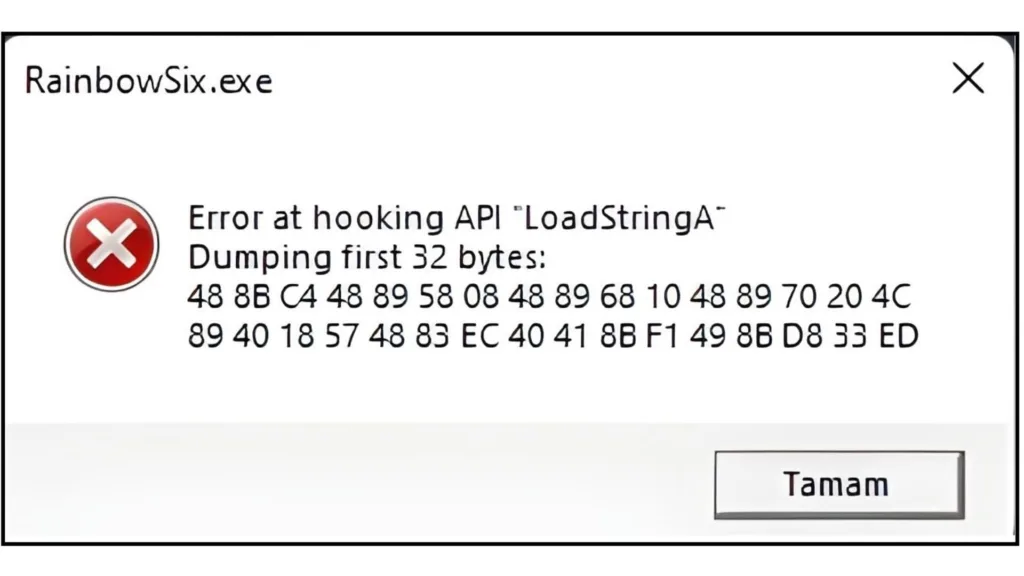
If you keep seeing the launch message “What Is Rainbow Six Siege Error at hooking api loadstringa dumping first 32 bytes?”, this article is a gamer-friendly breakdown of what that scary-sounding Rainbow Six Siege error usually means, why it shows up when the game refuses to start, and which safe, practical fixes can get you back to queueing Ranked instead of battling Windows. In plain terms, the “Error at hooking API ‘LoadStringA’” pop-up is widely reported around Rainbow Six Siege launches and is commonly tied to the anti-cheat layer (BattlEye) or corrupted/missing system files that interfere with how the game loads required Windows functions. The “dumping first 32 bytes” part is essentially diagnostic output shown in the error box—players often see it alongside the LoadStringA hooking warning, and it tends to appear in the same family of fixes that target BattlEye integrity and Windows file repair. This guide stays focused on legitimate troubleshooting (repairing system files, reinstalling BattlEye correctly, and reducing conflicts) rather than anything that would violate game rules or harm your PC.
What The Error Message Means
Players report that “Error at hooking API ‘LoadStringA’” appears as a prompt when launching Rainbow Six Siege, preventing the game from opening normally. Ubisoft’s BattlEye FAQ confirms BattlEye is an anti-cheat used by Rainbow Six Siege, so errors that mention “hooking” can show up when BattlEye detects an unexpected interaction or when its components don’t initialize correctly. When the message also includes “dumping first 32 bytes,” it’s typically shown as part of that same hooking warning and is often discussed in the context of generic Windows-repair and anti-cheat reinstall solutions.
Common Causes Players Run Into
A frequent real-world fix reported by players is that BattlEye was broken or misinstalled, and uninstalling/reinstalling it from the game’s BattlEye folder resolved the LoadStringA hooking error for them. Another common angle is Windows corruption (system files or component store issues), since many guides for this exact error recommend running System File Checker (SFC) and DISM repair commands. Some cases also overlap with broader BattlEye launch/install problems, where reinstalling BattlEye, restarting Ubisoft Connect, and checking security software are suggested steps.
Safe Fixes To Try (In Order)
- Reinstall BattlEye From The Game Folder: Steam users have reported fixing the LoadStringA hooking error by going into the Rainbow Six Siege BattlEye subfolder, uninstalling BattlEye using the provided uninstall .bat, then launching again so BattlEye reinstalls cleanly.
- Repair Windows System Files: Multiple fixes for the “Error at hooking API LoadStringA – dumping first 32 bytes” recommend running
sfc /scannow, then DISM health/restore commands in an elevated Command Prompt, and rebooting afterward. - Reduce Anti-Cheat Conflicts: BattlEye troubleshooting guides commonly include steps like disabling antivirus/firewall temporarily, reinstalling BattlEye completely, and restarting Ubisoft Connect if BattlEye won’t start.
Troubleshooting Via Steam
- Restart Your PC First (simple, but it’s repeatedly suggested alongside this exact error).
- Verify Game Files In Steam: Steam Library → right-click Tom Clancy’s Rainbow Six Siege → Properties → Installed Files → Verify integrity. (Ubisoft Support specifically points to verifying files as a key step.)
- Reinstall BattlEye From The R6 Folder (Steam Method): Open the Rainbow Six Siege install directory → find the BattlEye folder → run the BattlEye uninstall batch file as Administrator (many guides describe this exact flow), then verify files again so BattlEye reinstalls cleanly.
- Run Windows System Repair Commands (fixes underlying Windows issues that can trigger hooking/API errors): open Command Prompt as admin → run
sfc /scannow, thenDISM /Online /Clean-up /RestoreHealth, then reboot. - Update GPU Drivers (a Steam support reply about this error specifically mentions updating drivers, then reboot + re-validate if needed).
Troubleshooting Via Ubisoft Connect
- Restart Your PC And Ubisoft Connect, then try launching again (restarts are commonly paired with this error’s fixes).
- Verify/Repair The Game Files In Ubisoft Connect (Ubisoft Support commonly directs players to troubleshooting with verifying files “in particular” when this error appears).
- Reinstall BattlEye Service (Ubisoft-Friendly Approach): BattlEye is confirmed by Ubisoft as the game’s anti-cheat, and service issues can block launch—so remove the BattlEye service and reinstall it cleanly (many BattlEye guides outline reinstalling the service as the fix when it’s corrupted).
- Whitelist BattlEye Executables In Security Software (BattlEye problems often require allowing its .exe files through firewall/antivirus to run correctly).
- Run Windows System Repair Commands: open Command Prompt as admin →
sfc /scannow→DISM /Online /Clean-up /RestoreHealth→ reboot. - Run Ubisoft Connect As Administrator and launch the game again, since BattlEye/service installs can fail without permissions (BattlEye install troubleshooting commonly includes “run as administrator”).